
To reset your password, you must use the unique login URL provided by the Convin team, where you can initiate the password reset process by clicking "Forgot Password?" and following the email instructions to securely set a new one.
E.g., a user is supposed to log in with the URL xyz.convin.ai, where xyz could be your organization's name.
- The user will land on a Login page of convin.
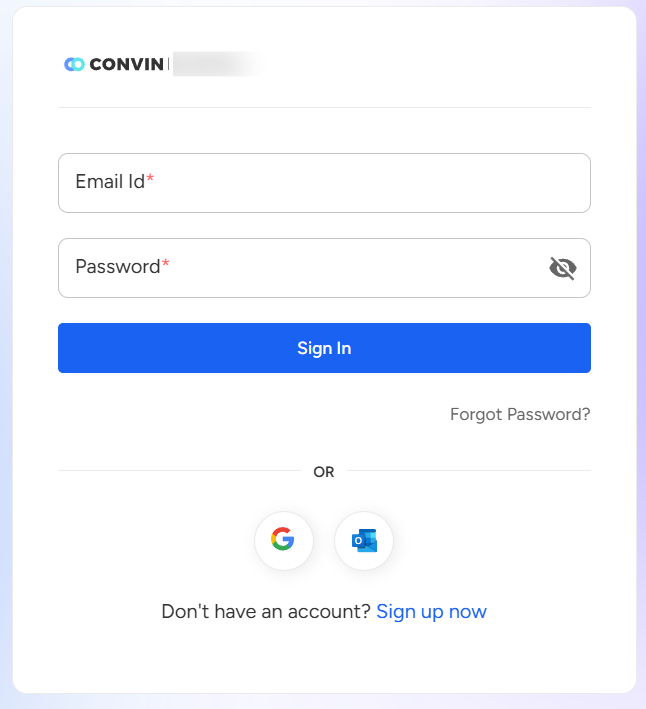
- Click on "Forgot Password."
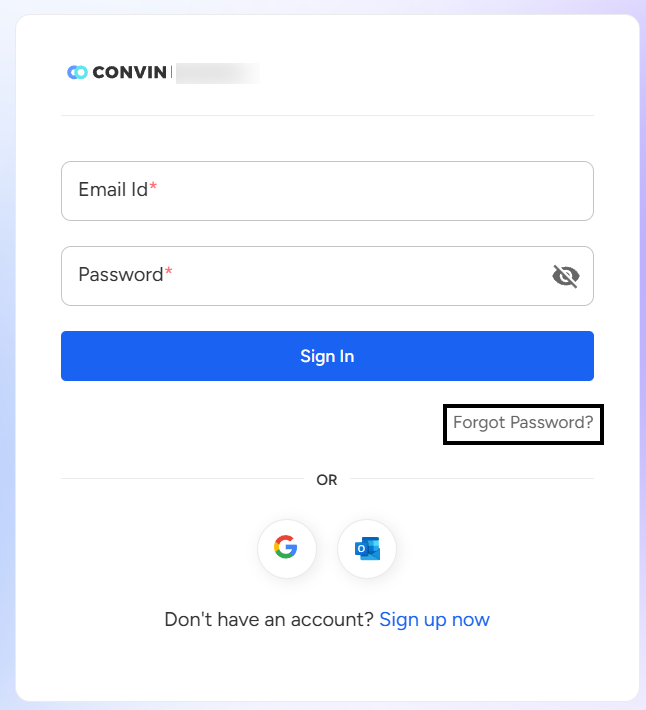
- After clicking on forgot password, the user will be redirected to the "Get Reset Link" page.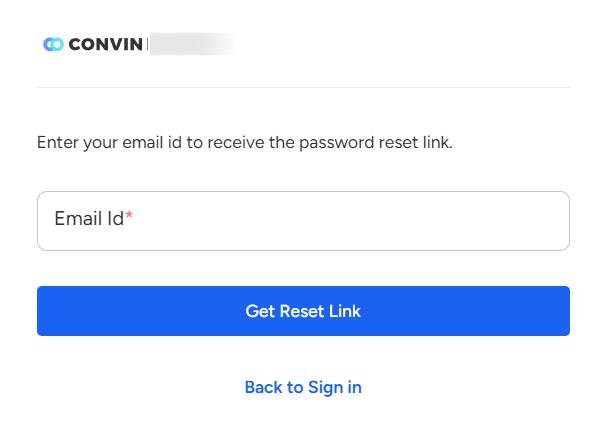
- Enter your Username/Email Convin Team provided and click "Get Reset Link."

- This will trigger a reset password link to your email id registered with Convin.
- The user will get a mail from [email protected]; the mail sample is attached below.
Note: Try to check your email in your Spam/Junk/Promotion/Update folder or search "Reset Password" if you cannot find the Reset link mail in your Inbox.

- Click on the link attached to the email.

- Please enter the new password the user wants to set and confirm it by entering it again.
- Now, Click the "Reset Password" and try to log in again.
Need Additional Assistance?
📩 Still need help? Contact our support team at [email protected] —we’re happy to assist!
Good day!