
The Library/LMS acts as a centralized hub for storing all essential resources, making it easy to share with your internal team. It organizes materials for quick reference, ensuring everyone has access to the necessary information.
Additionally, the Library/LMS enables you to create and schedule manual coaching sessions with your team or agents, promoting continuous development.
- The Library/LMS is conveniently accessible from the navigation bar.
- A user can share call snippets from any call and add them to the Library for easy sharing with the team or agents.
To add any call to LMS, follow these steps:
Go to the "Conversations" page.

Click on a call to view its expanded view.
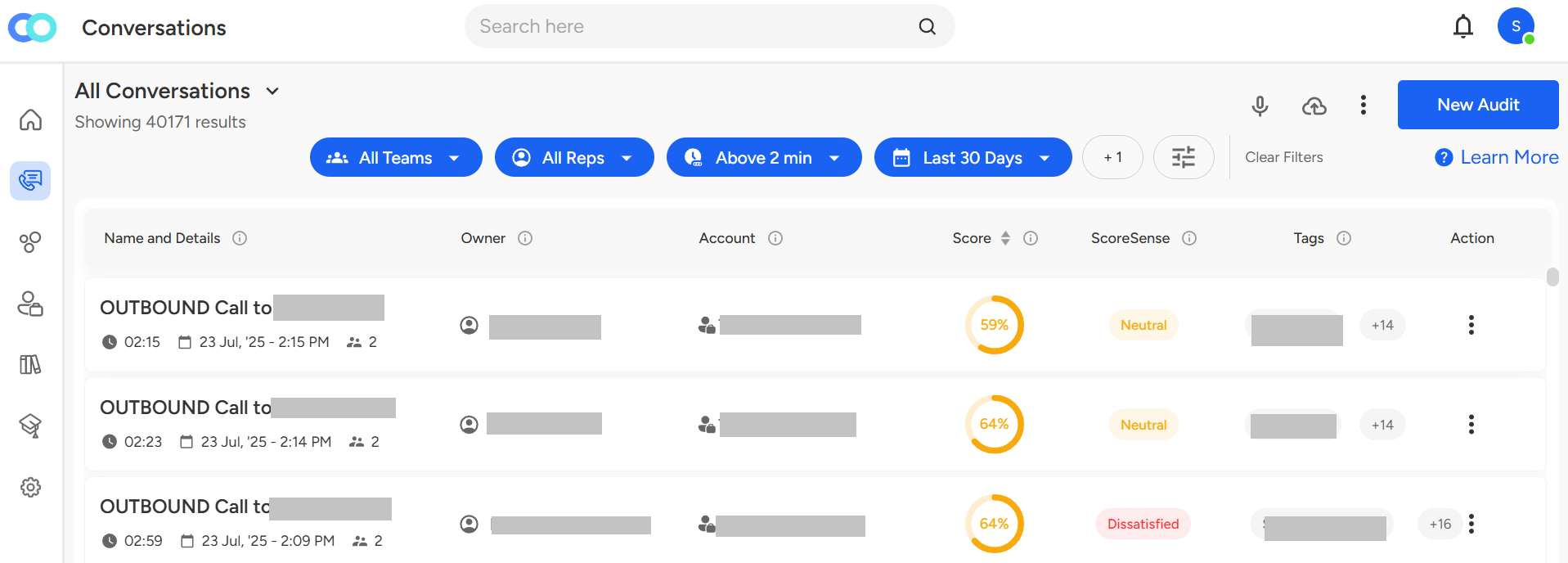
Select the "Add to LMS" option.
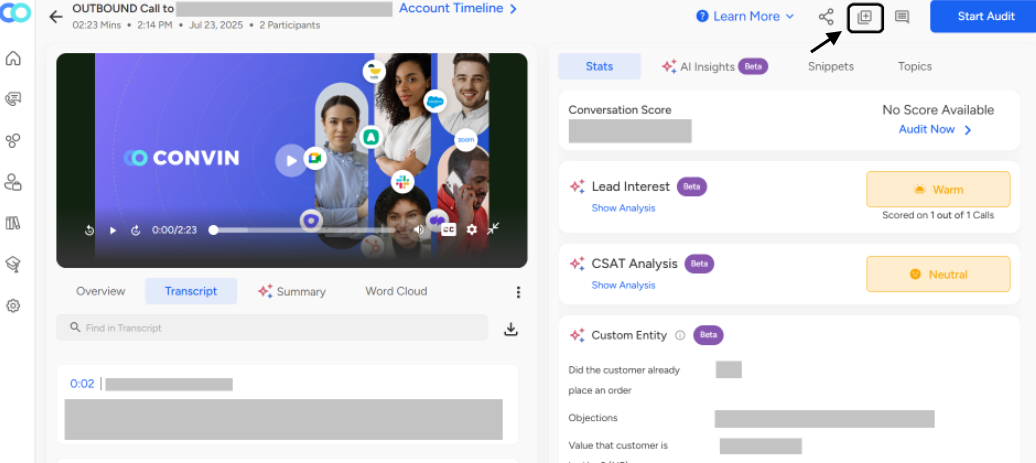
The image below shows the expanded view of the Add to LMS option.
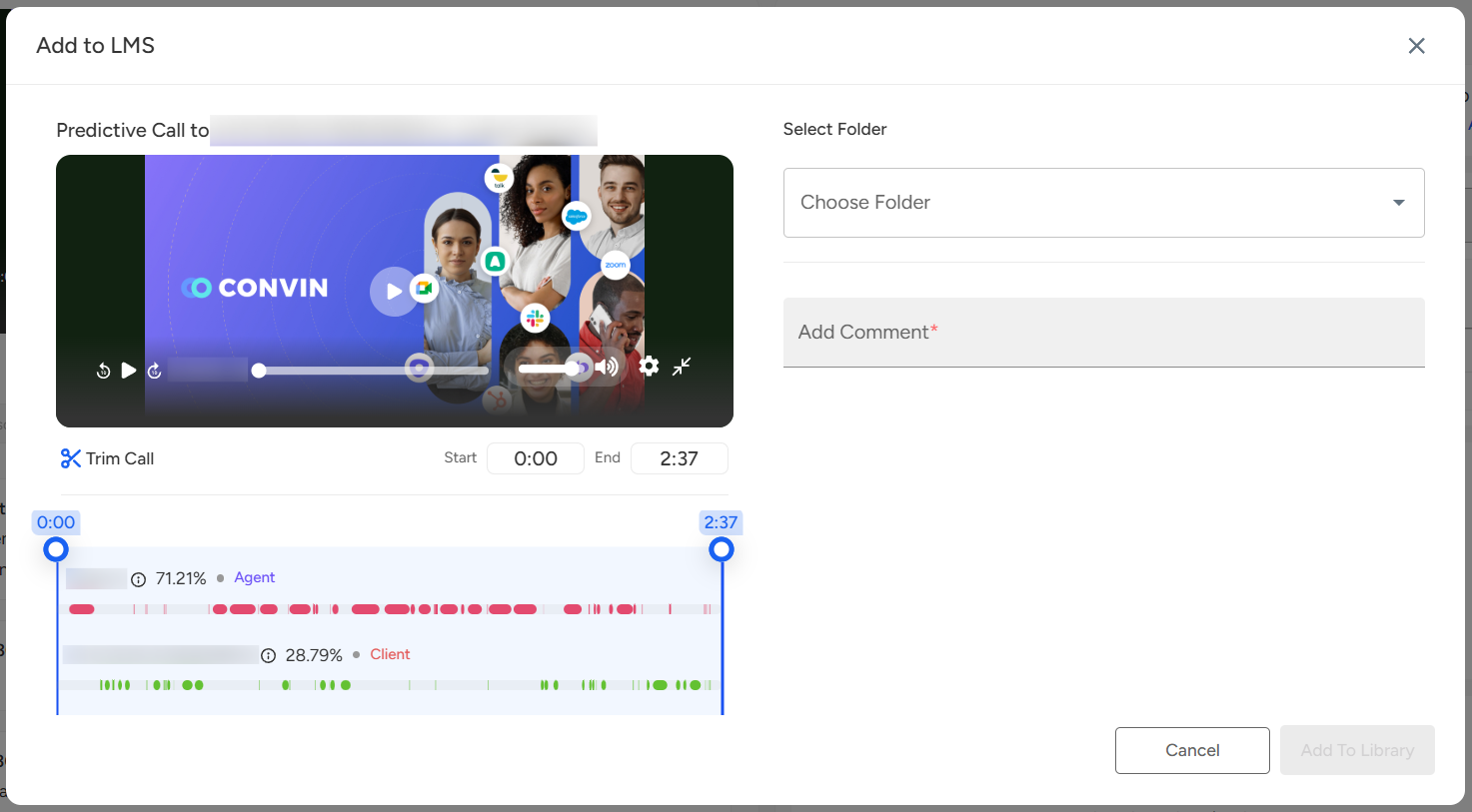
Choose a folder to add the call, then add a comment that will serve as the "Title".
Once chosen, click on "Add to Library".
Note: In addition to snippets, users can also upload documents, audio, video files, and much more by navigating to "Library/LMS" and Click on “Upload” or “New Document” located at the top-right corner of the page.
Need Additional Assistance?
📩 Still need help? Contact our support team at [email protected] —we’re happy to assist!
Good day!