
This article explains the Processing Status filter in Convin’s Conversations Dashboard, helping you track the progress of your recorded calls.
What is Processing Status?
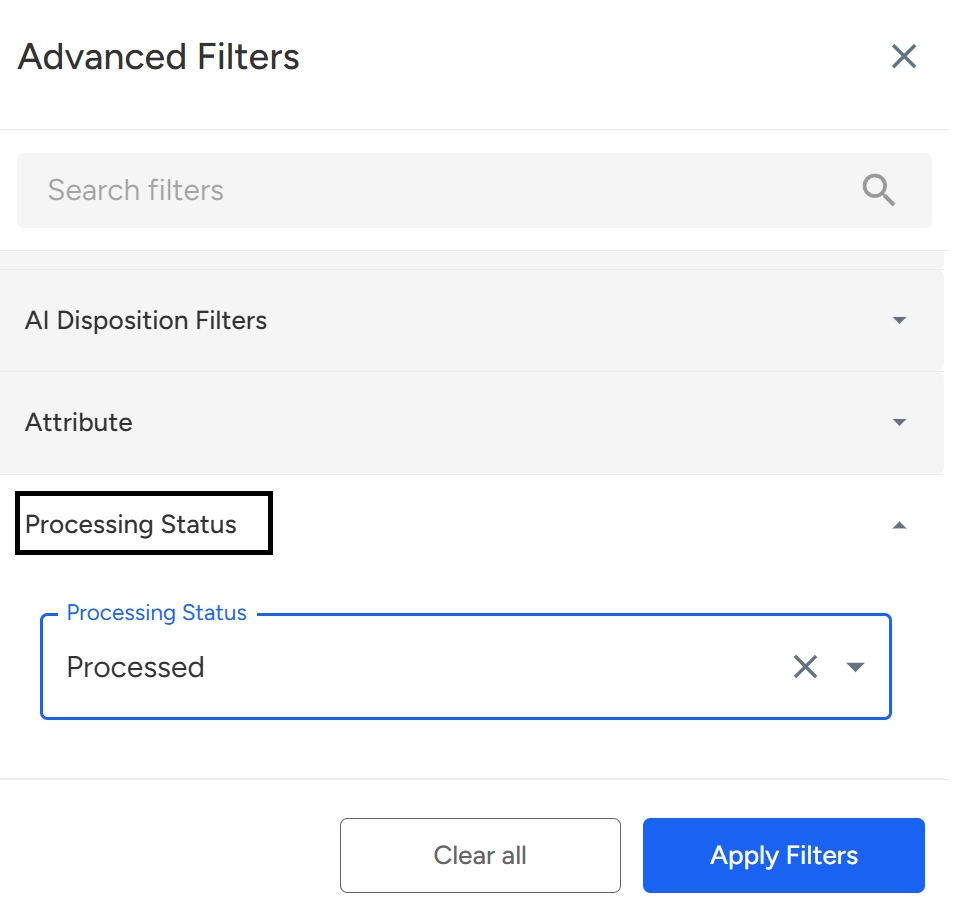
The Processing Status filter allows you to check the current stage of your calls after they are uploaded to Convin. This helps in monitoring call processing, identifying delays, or troubleshooting errors.
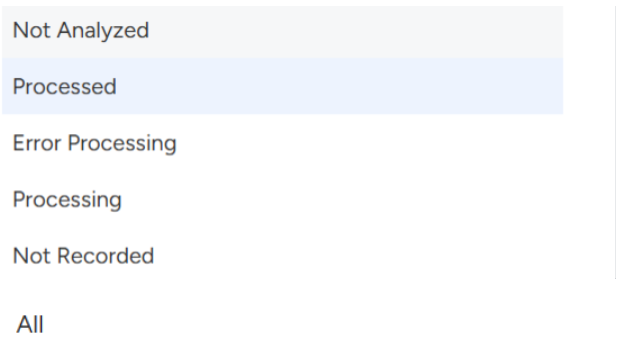
Possible Processing Statuses:
✅ Processed – The call has been successfully analyzed and is ready for review.
🔄 Processing – The call is currently being transcribed or analyzed.
❌ Not Recorded – The call was not captured due to technical issues or user settings.
⚠️ Error Processing – The call encountered an issue during analysis and requires attention.
🔍 Not Analyzed – The call was recorded but has not yet been analyzed.
📂 All – Includes all call statuses (processed, processing, not recorded, etc.).
How to Use the Processing Status Filter?
Follow these steps to filter calls based on their processing stage:
- Go to the Conversations Dashboard.

- Click on "Filters" at the top of the page.

- Select "Processing Status" from the dropdown menu.
- Choose the desired status (e.g., "Processed," "Processing," etc.).
- Click "Apply Filter" to view calls matching your selection.

Why is This Useful?
- Quickly identify calls that are ready for review (Processed).
- Track ongoing processing (Processing) for real-time updates.
- Detect and resolve failed recordings (Error Processing / Not Recorded).
Need Additional Assistance?
📩 Still need help? Contact our support team at [email protected] —we’re happy to assist!
Good day!