
The "Questions" option is available in the Filters section of the Conversation Dashboard.
This option is useful for Managers, Team Leads, Admins, Quality Analysts, and Agents to filter multiple calls based on the number of questions asked by either the Agent or the Client during a call.
For example, if a stakeholder wants to find conversations where more than 10 questions were asked by both the client and the agent, this filter proves to be highly effective.
To access the "Questions" filter, follow the steps mentioned below:
Navigate to the Conversation Dashboard.

Click on the "Filters" button located at the top-right.

Scroll down and locate the "Questions" filter option. Set the desired condition (e.g., more than 10 questions by Agent or Client).
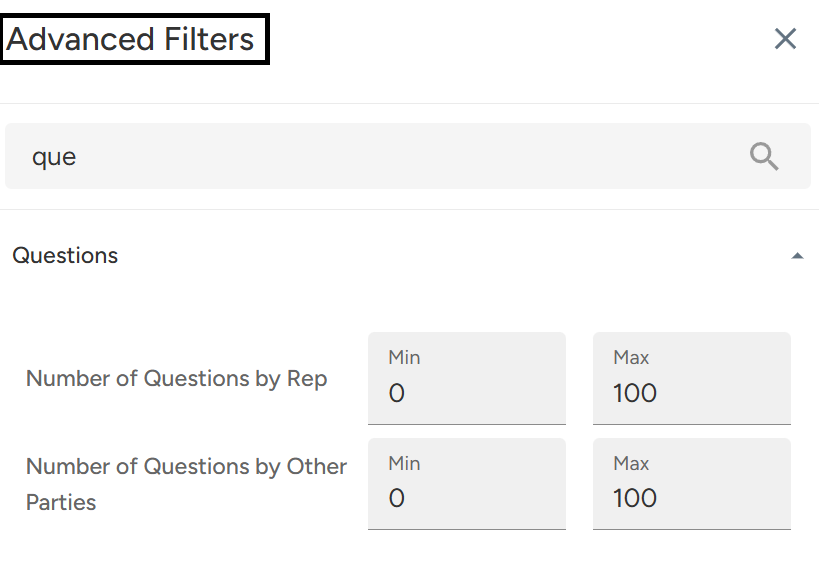
Click on "Apply Filter" to view the relevant calls.
You can view the relevant data based on the filter that was applied.
📩 Still need help? Contact our support team at [email protected] —we’re happy to assist!
Good day!