
The "Conversation Type" filter in Convin's Conversations Dashboard helps teams track call stages and customer interactions directly from your CRM.
It automatically syncs data, letting you analyze trends in sales pipelines or support resolutions. Managers QA Teams can use these insights to coach agents and improve workflows.
To access the "Conversation Type" option, follow the steps mentioned below:
- Navigate to the "Conversation" dashboard -

- Click on the Advanced Filters-

- You will be able to find the Conversation Types-
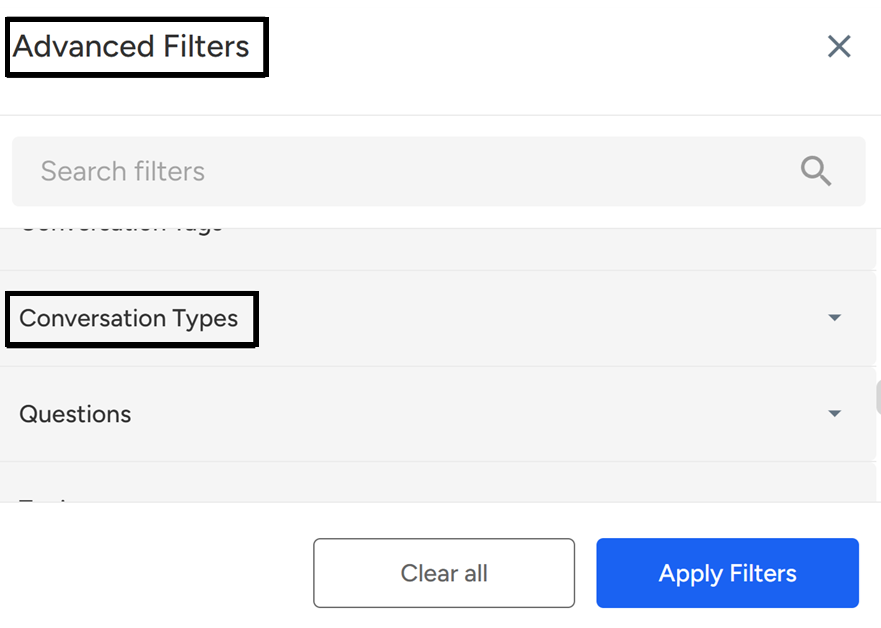
- Click on the required "Conversation Type" to find a call.
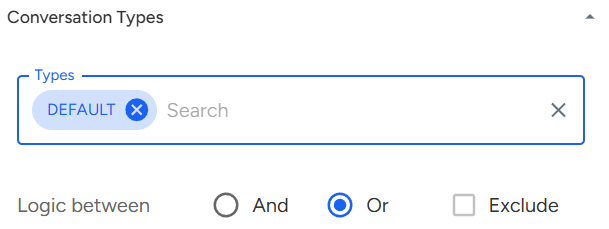
4. Filter Logic Rules:
OR (Multiple types selected):
Shows calls that match any of the selected conversation types
Example: "Discovery" OR "Demo" will show calls tagged with either typeAND (Multiple types selected):
Shows calls that contain all selected conversation types
Example: "Objection Handling" AND "Closing" will only show calls with both tagsEXCLUDE:
Filters out calls that have the selected conversation type(s)
Example: Exclude "Follow-up" will hide all calls with this tag
After you enter the required Conversation Type, you can click on "Apply Filter", which will show you the data according to the Tags you asked for.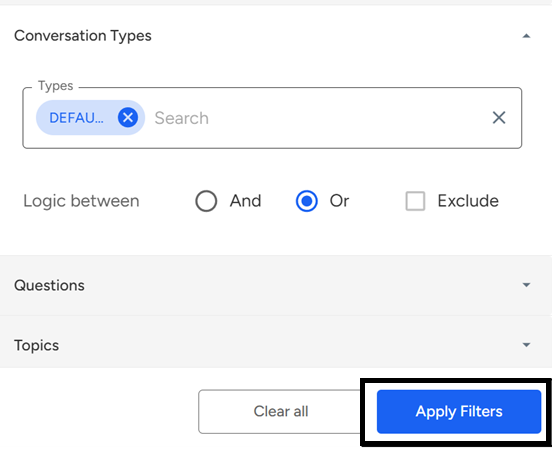
The Conversation Type filter in Convin’s Dashboard helps teams analyze customer interactions and call stages synced directly from their CRM. It enables users to filter calls using logic rules like OR, AND, and EXCLUDE making it easier to track sales or support trends, coach agents, and optimize workflows.
- Note: These Conversation Types are given by clients according to their CRM.
📩 Still need help? Contact our support team at [email protected] —we’re happy to assist!
Good day!