
Having trouble locating specific conversations within large volumes of call data? Convin’s Advanced Keyword Search helps you quickly identify precise moments in customer interactions with ease and accuracy.
Convin’s Advanced Keyword Search delivers precise results, allowing users to quickly filter data and find the exact keyword they need.
Navigate to the Conversation page:
- Navigate to the Conversation page:

- Click on the "Advanced Filters" option; it will take you to a list of search filters for a particular dataset.

- Click on "Advanced Keyword Search."
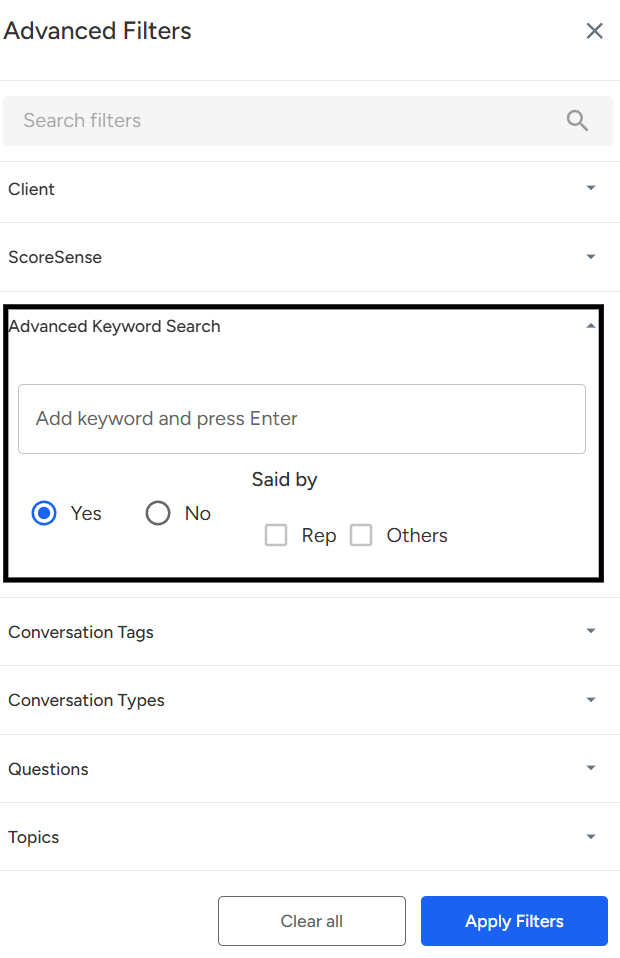
- Now you can add multiple keywords you want to search in a call data in "Add Keyword And Press Enter."
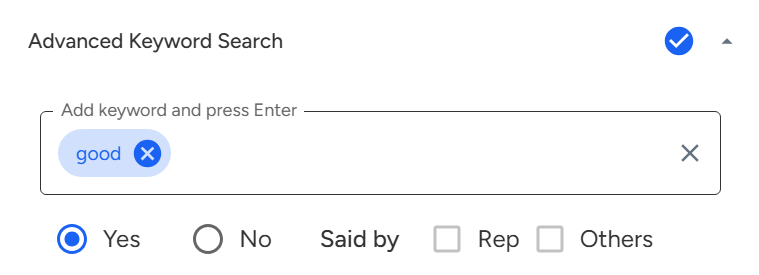
- After entering the desired keywords, click on the "Apply Filter" button. This action will display only the data that matches your selected keywords.

- Here,
- Yes: Include the entered keywords
- No: Exclude the entered keywordsSaid By:
- Rep: This filter allows you to search for keywords spoken by the calling agent.
- Others: This filter allows you to search for keywords spoken by the customer or client.An Example image is attached below:
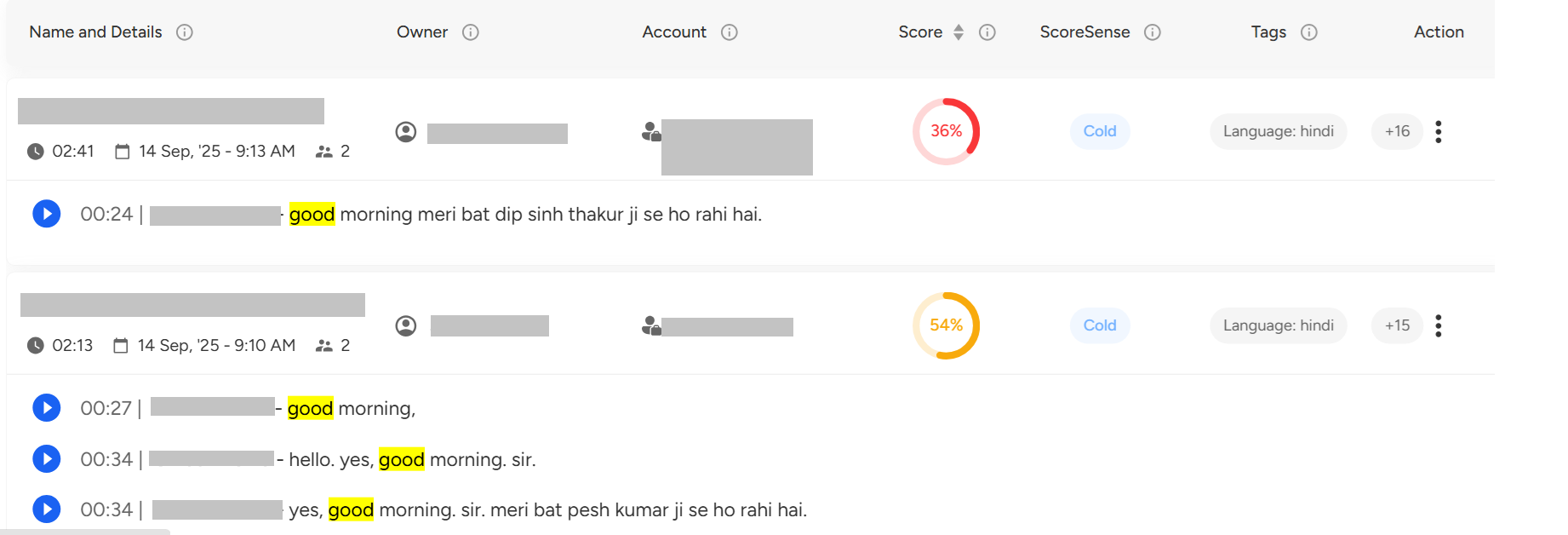
The Advanced Keyword Search in Convin enables users to quickly locate specific conversations by filtering call data with multiple keywords. Users can include or exclude keywords, and refine searches based on whether they were spoken by the agent or the customer. This feature ensures faster, more accurate insights from large datasets.
Need Additional Assistance?
📩 Still need help? Contact our support team at [email protected] —we’re happy to assist!
Good day! 🚀