
The Conversations module offers a centralized view of all interactions between our organization's representatives and customers or clients.
Upon logging in, you will see a list of Completed Calls that meet the default filter criteria set by your organization. These filters typically include a specified date range, call duration, and processing status, ensuring that the most relevant conversations are displayed initially. However, you can easily adjust these filters to refine your search and access the specific call records you need.
- To access the Conversation module, simply click on the second icon in the Navigation bar.
 You will see a page similar to the one below:
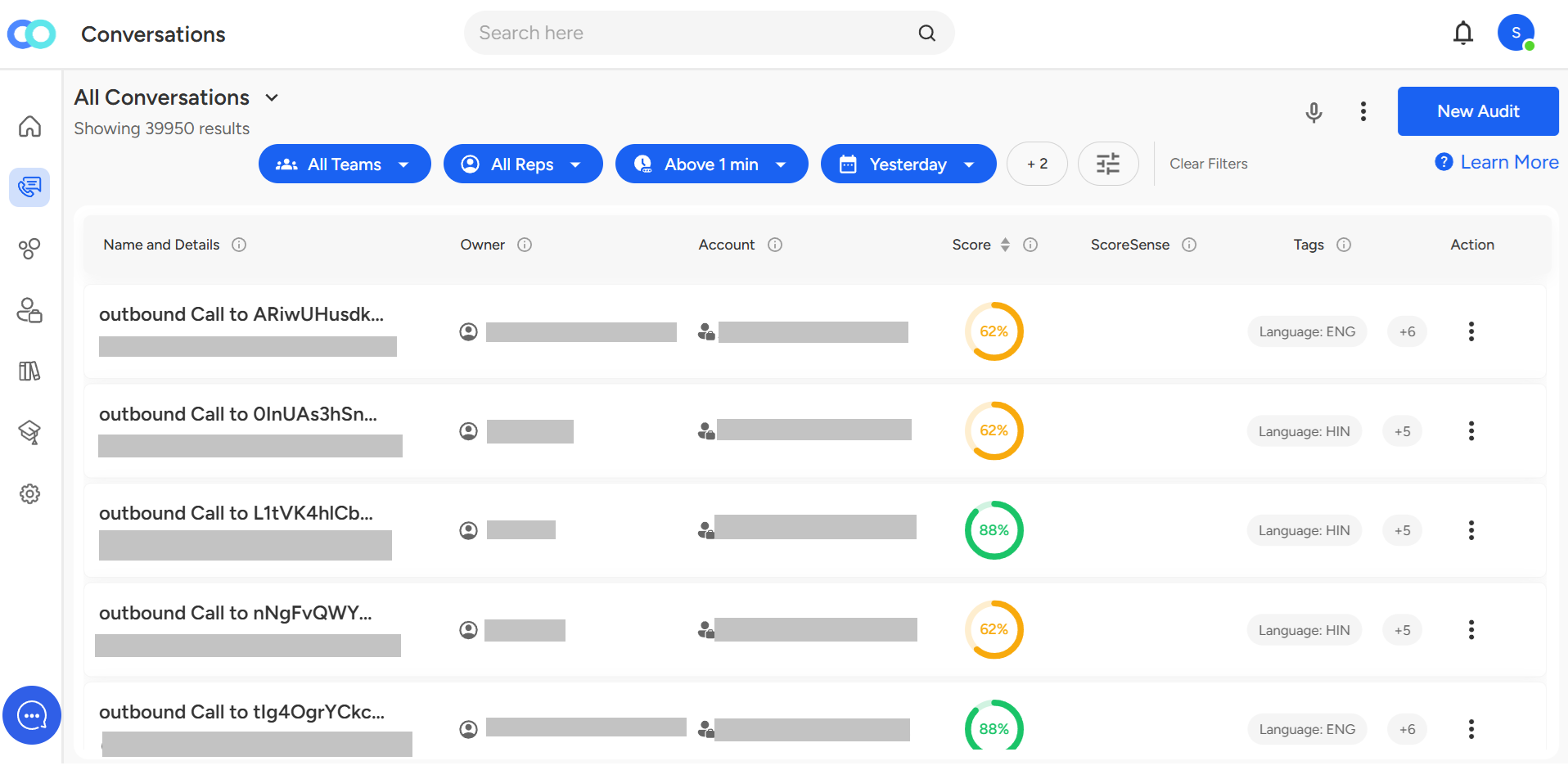
The conversations page provides all the necessary filters to access specific calls and highlights important aspects such as Conversation Name, Owner, Customer ID, etc.

Conversation Name: Event Name from User Calendar or the Cloud Telephony system.
Owner of the conversation: Host of the conversation.
Customer/Account ID: Prospect to which owner has connected on a call/conversation.
Conversation Date & Time: When a particular interaction or call between a company representative and a customer or client took place.
Duration: Length or time span of a conversation.
Number of participants: Entities involved in the interaction.
Number of comments: In case any additional notes or remarks are added by someone.
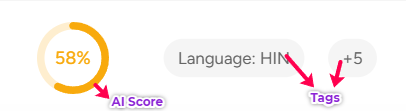
In addition to the conversation details, our system provides valuable insights through the Call Score and associated tags. The Call Score is an AI-driven evaluation that assesses the quality and effectiveness of each interaction. This score is accompanied by relevant tags, which are descriptive labels that help categorize and contextualize the conversation.
- Clicking on each Conversations banner takes you to the conversation details page.
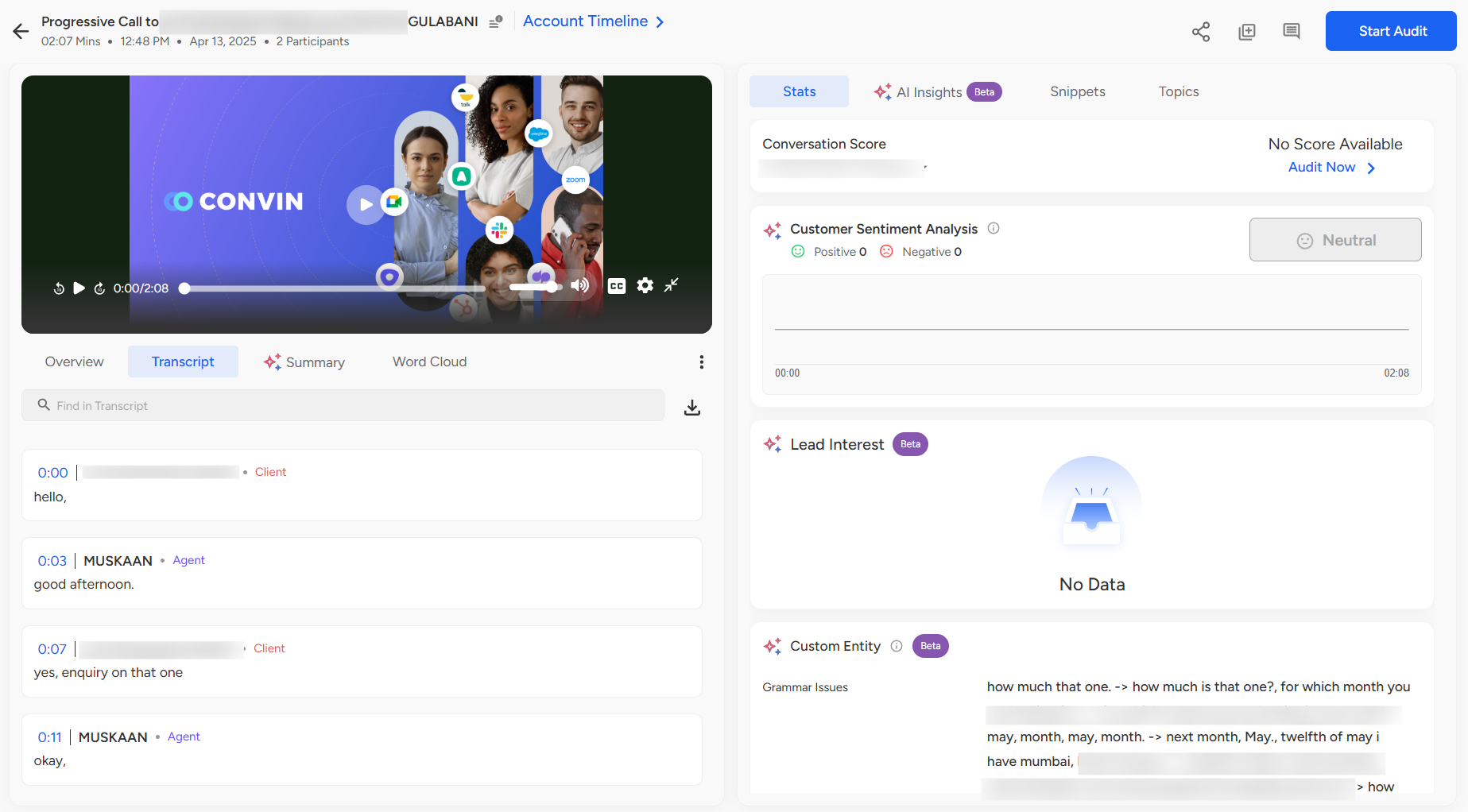
For example, one can view a list of calls by a particular agent for the last week and view the list in the Conversation dashboard.
Create Alerts lets you create an alert for a set of filters, and you can get instant notifications on the mail or at a user-defined frequency once a new call qualifies for those filters.

Upcoming Meetings can be viewed by clicking on the Upcoming Meetings button.
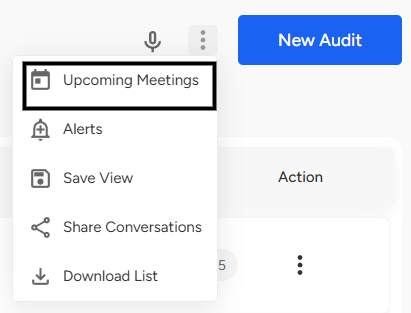
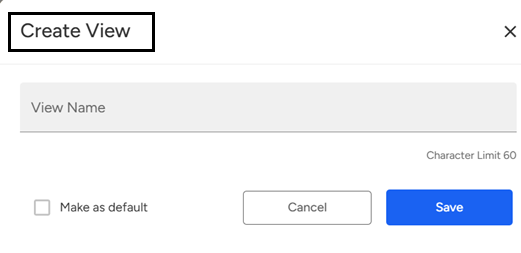
- To create a Saved View, click on Save View after applying your desired filters. You can name the view accordingly and save it for quick access in the future.

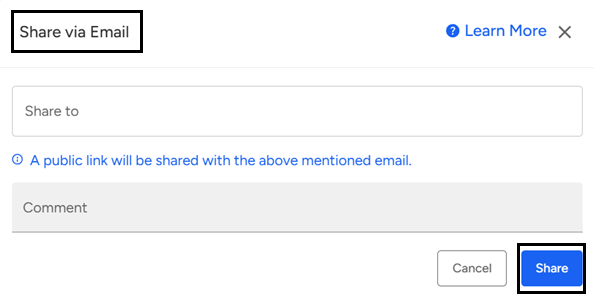
- You can use the Share Conversations option to easily share conversations with your team members using their onboarded email IDs.

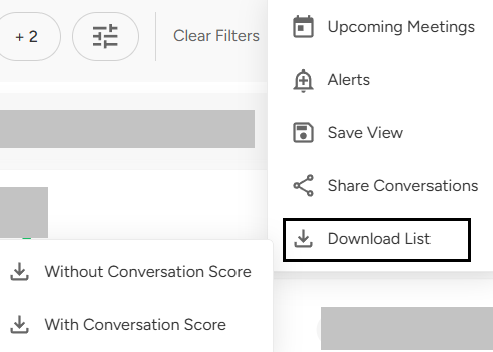
- You can use the Download List option to download the report either with or without the conversation score, based on your preference.
The Conversations module gives you a centralized view of all customer interactions, with filterable call details like date, duration, owner, and more. You can save views, set alerts, share conversations, and download reports—with or without scores—for easy tracking and analysis.
📩 Still need help? Contact our support team at [email protected] —we’re happy to assist!
Good day!