
A Manual Audit enables auditors to manually evaluate a conversation by scoring it against a predefined set of questions in the audit template.
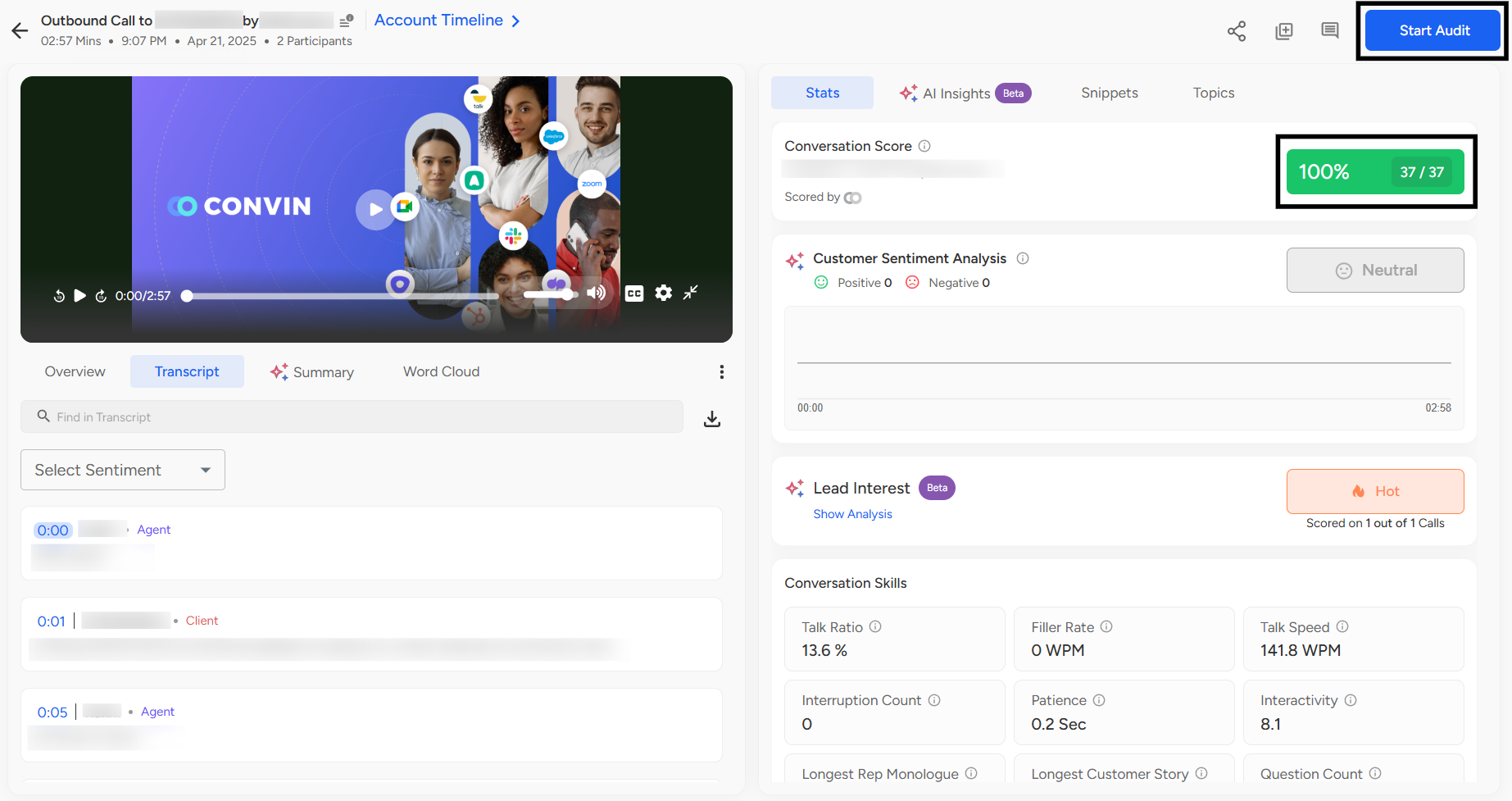
To perform manual auditing, the auditor needs to navigate to the Conversations page, access the call recording, and then begin the evaluation process.
To manually audit a call or conversation:
The auditor can select any conversation previously audited by AI, choose the Manual Audit option, and override the AI-generated responses by scoring the call/chat manually.
The Manual Audit page can be accessed either by clicking the “Start Audit” button located at the top-right corner of the screen or by selecting the Scorecard option directly.
The Audit Template can be easily changed from the top section of the Manual Audit page, allowing auditors to switch between different templates based on the evaluation criteria or use case.

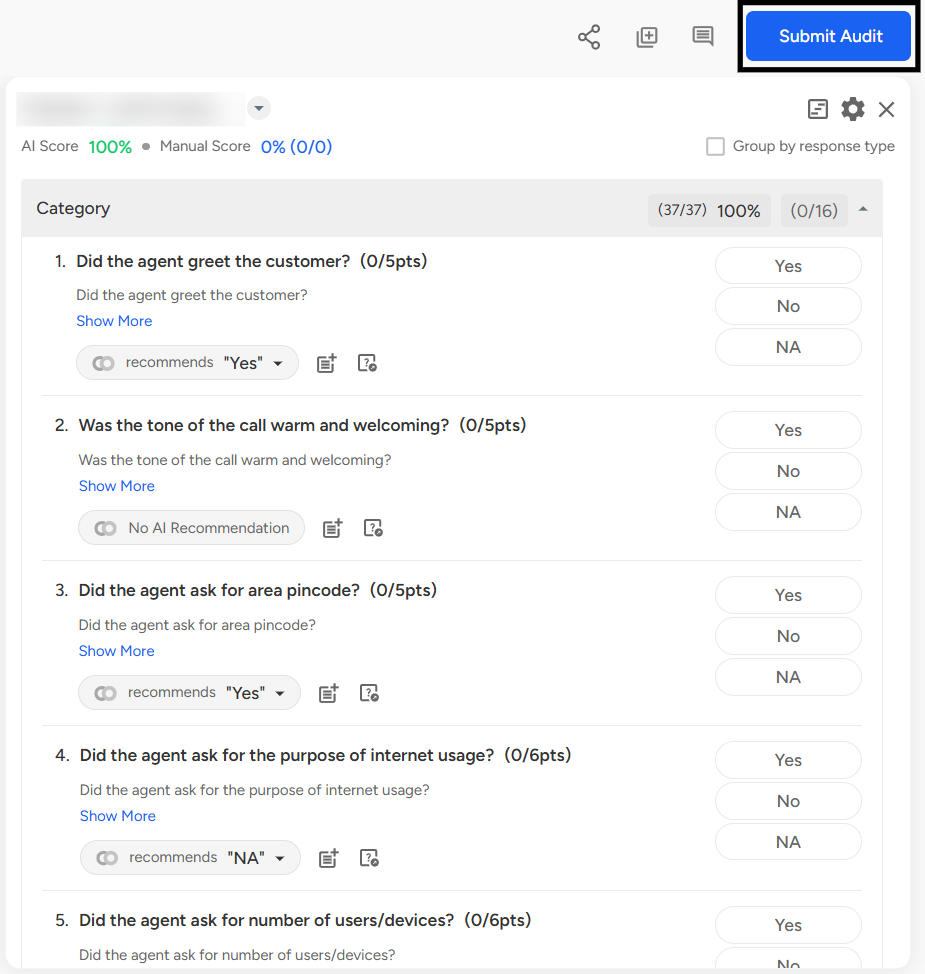
To complete a manual audit, the user must mark responses for each question in the audit template and then click on the Submit Audit button located at the bottom of the list to finalize the audit.
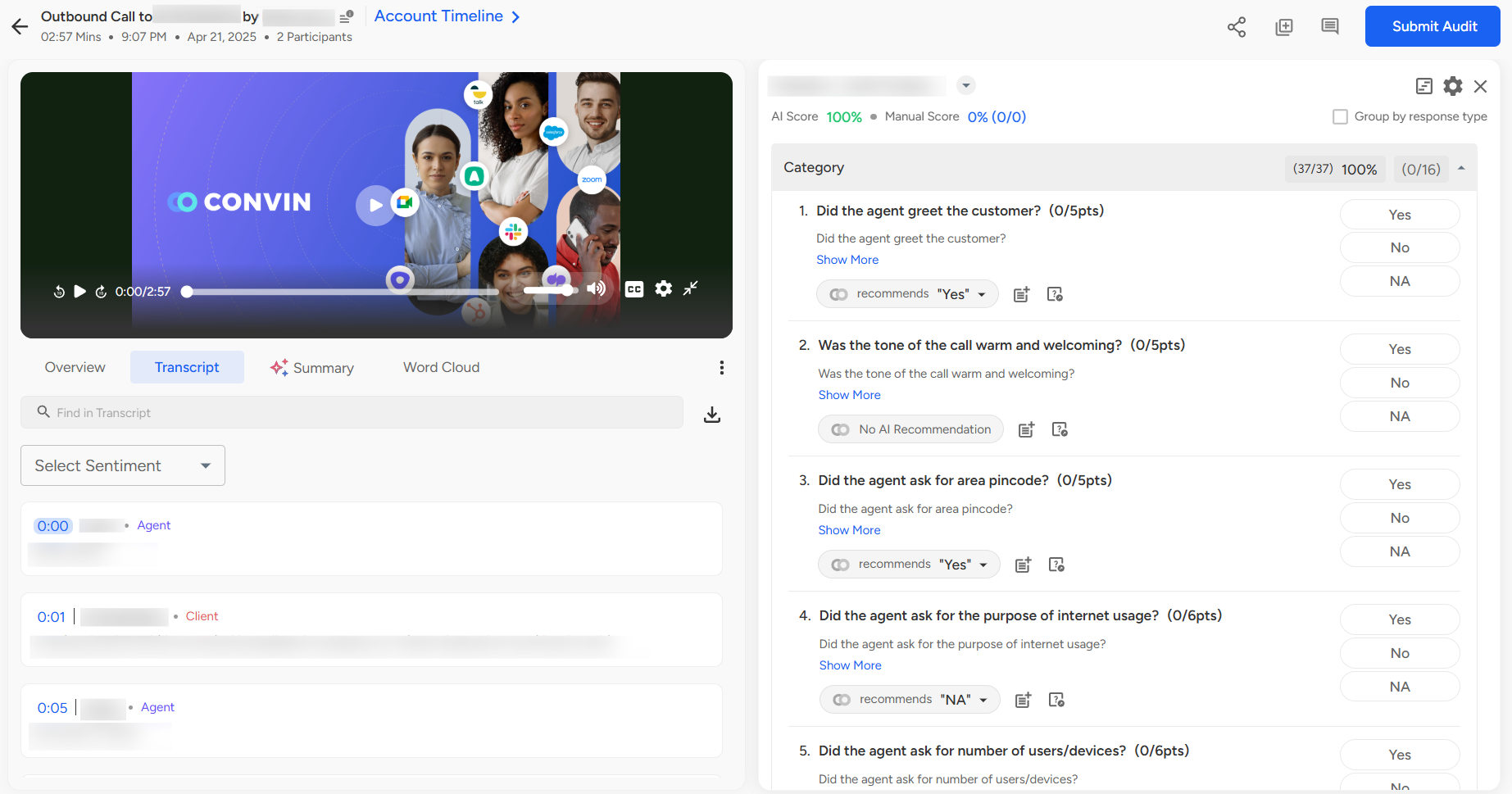
An auditor can add responses to each question by selecting Yes/No/NA, with the options being customizable based on specific requirements.
Once all the questions have been answered, the auditor must submit the audit by clicking the "Submit Audit" button to finalize the process.
After submitting the audit, you will be directed to the Score page, where both AI-generated and Manual Audited scores will be displayed, providing a comprehensive view of the evaluation results.

Need Additional Assistance?
📩 Still need help? Contact our support team at [email protected] —we’re happy to assist!
Good day!