
This guide provides step-by-step instructions to filter and locate meetings based on their duration using Convin.ai's dashboard.
Steps to Filter Meetings by Duration
1. Navigate to the Dashboard Filters
- Go to the top of your Convin.ai dashboard.
- Locate the filter dropdown labeled "Above 2 minute".

2. Select a Predefined Time Range
-Click the dropdown to see default duration filters, such as:
-Above 2 minutes
-Below 2 minutes
-Above 5 minutes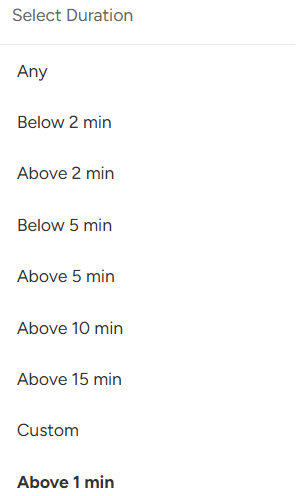
3. Set a "Custom" Time Range (If Needed)
-If you require a more specific time frame, you can manually enter a custom range.
-For example, to filter meetings that last between 2 to 5 minutes, input that exact duration to find calls within that time range.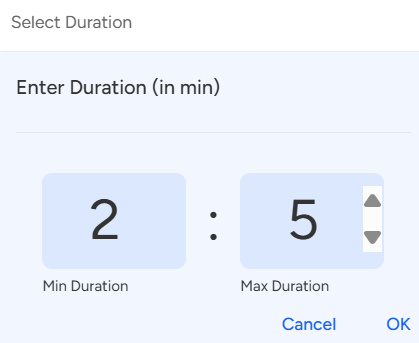
- Press OK to apply the custom filter.
Note:
- To filter calls based on a minimum duration, enter the desired duration in the Minimum Duration field. For example, if you want to see calls shorter than 2 minutes, set the Minimum Duration to 2 minutes.
- To filter calls based on a maximum duration, enter the desired duration in the Maximum Duration field. For example, if you want to see calls longer than a specific time, set the Maximum Duration to that duration.
- This allows you to view calls that are either less than or greater than a specific time range.
Need Additional Assistance?
🎥 Watch our tutorial for a step-by-step walkthrough:https://drive.google.com/file/d/1iCa4-7CIyrfHC5vACOVjWlttyPM8M0jf/view?usp=share_link
📩 Still need help? Contact our support team at [email protected] —we’re happy to assist!
Good day!