
This option is helpful for recording a particular call/meeting when you still need to schedule a meeting on your calendar or take an unplanned meeting.
To access the "Record" Option, follow the steps mentioned below:
Navigate to the Conversation Dashboard.

The "Record Call" option is in the Conversation Dashboard, located in the right corner of dashboard.

Click on "Record Call"
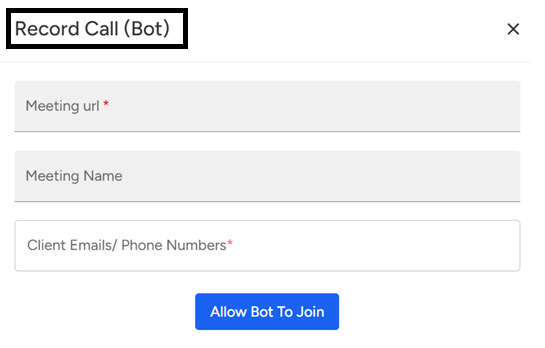
- After clicking "Record Call", a pop-up will appear where the user must upload the meeting link (Google Meet, Zoom, etc.). Please ensure that the Meeting Name and Client Email/Phone Number are mentioned accurately and in alignment with the meeting details.
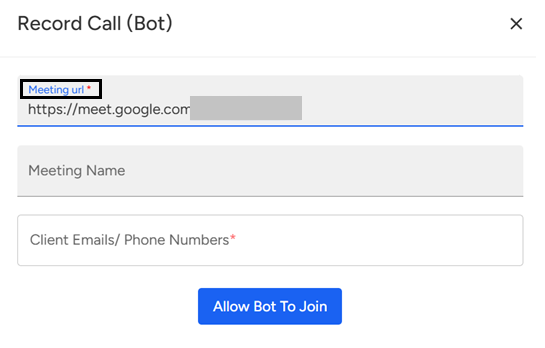
Click on "Allow Bot to Join". Within 2 minutes, a bot will join the meeting, and you can now record the call.

The Record Call option allows you to capture a call or meeting, even for unscheduled or ad-hoc sessions. From the Conversation Dashboard, click Record Call, upload the meeting link (Google Meet, Zoom, etc.), and ensure the Meeting Name and Client Email/Phone Number are correct. Click Allow Bot to Join, and the bot will join within 2 minutes to record the call.
📩 Still need help? Contact our support team at [email protected] —we’re happy to assist!
Good day!