
To filter conversations by date, simply navigate to the Conversation Dashboard. There, you'll find an option to select a specific date range. This allows you to view only the conversations that occurred within that chosen time period.
It’s a quick and easy way to find conversations from a particular date range without any hassle
- To find conversations for a specific date range, navigate to the Conversations Page.

- Click on the Conversations logo, and below is the view you will get.
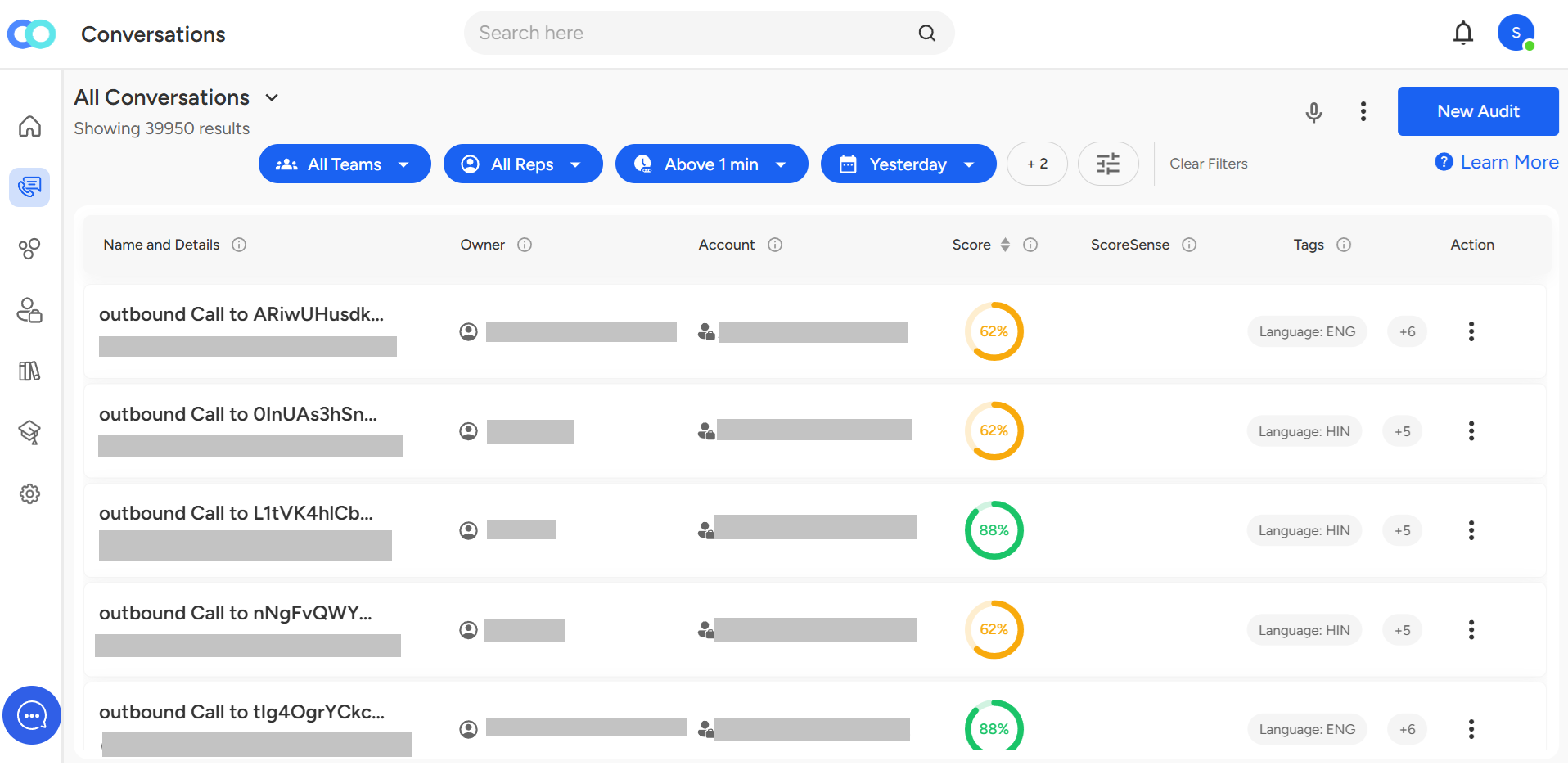
- Look for the date filter dropdown as highlighted below.

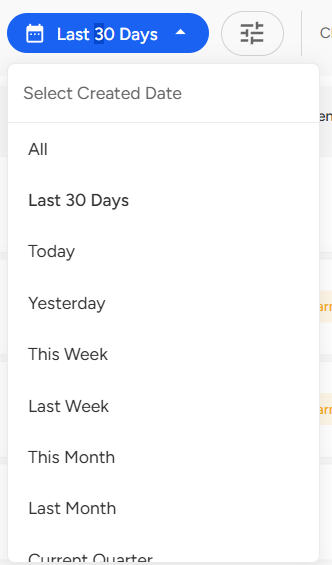
- Once clicked, you’ll see multiple options such as Today, Yesterday, This Week, This Month, and more.
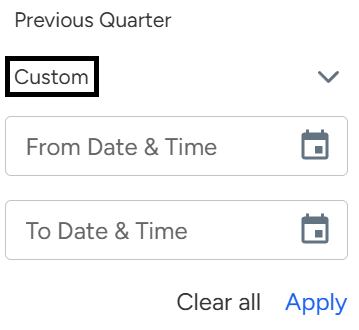
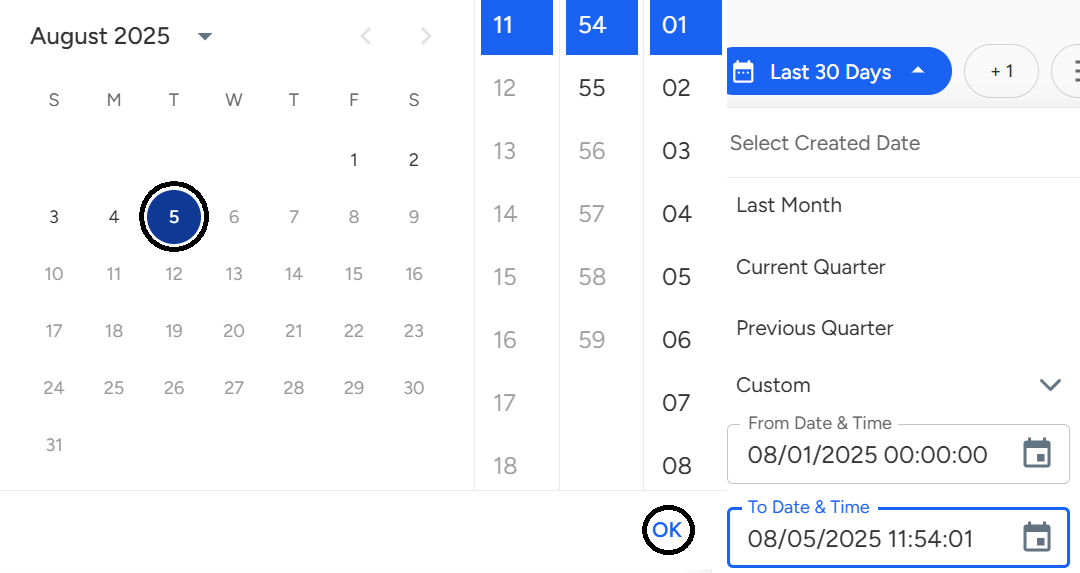
- You can also select a custom date range by clicking on "Custom."
- Click on "From Date & Time" to apply the starting date limit, then click "OK".
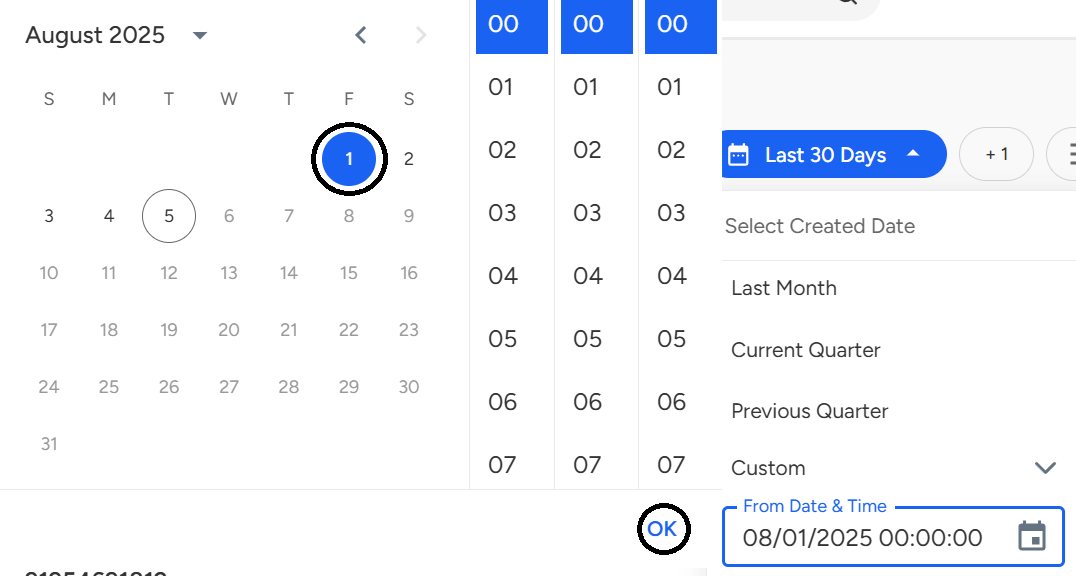
- Click on "To Date & Time" to apply the last date limit, and click on "OK."
- Now, Click on Apply.
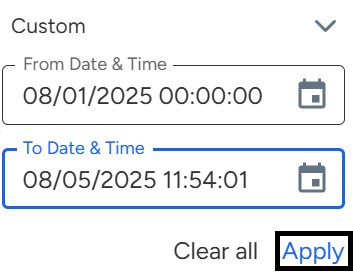
By using the date range filter, you can easily access conversations from a specific time period, streamlining your workflow and ensuring quick access to the information you need. Whether it’s a predefined range or a custom selection, the process is simple and effective.
📩 Still need help? Contact our support team at [email protected] —we’re happy to assist!
Good day!